Screen and facecam together
A screen recorder with a facecam you can still move afterwards
Blyp records your screen and your webcam at the same time and keeps them as two tracks. The facecam sits in a round bubble over the recording, and because it is composited when the video plays rather than burned in, you can move it, resize it or hide it after you have already sent the link.
Re-frame the facecam after recording
Try the controls. This is what the editor's Camera tab does, on the link you already sent.
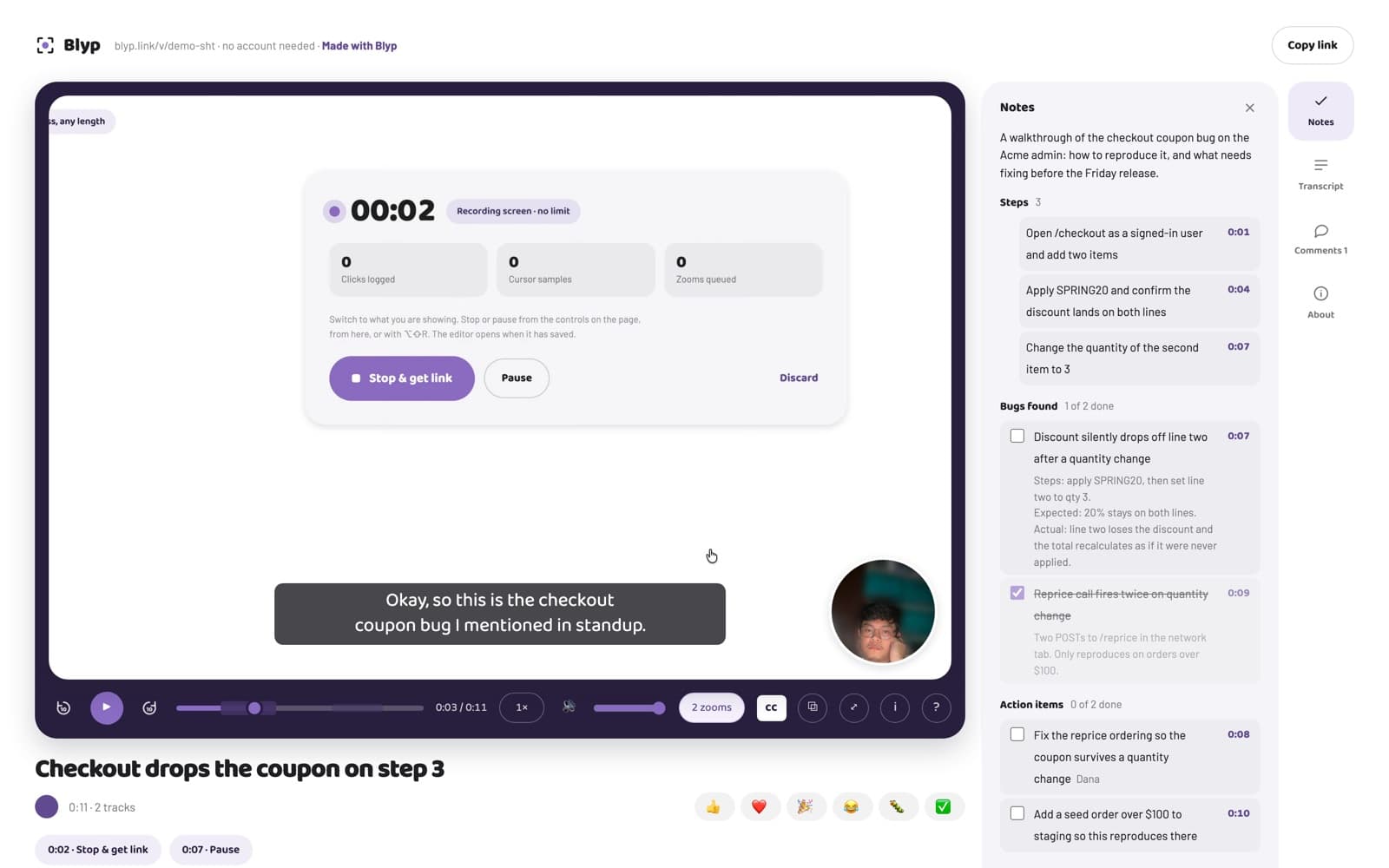
The facecam is its own track
Your webcam is recorded as a separate 640 by 640 track, not painted onto the screen recording. In the editor's Camera tab you can put the bubble in another corner, make it larger or smaller, or hide it for the whole Blyp, and the share link stays the same. The background behind you can be blurred while you record.
The screen keeps every pixel
The screen is recorded at your display's own resolution and 30 frames a second, encoded once on your computer, and the share page plays that file. The facecam never costs the screen any detail, because the two are not mixed into one image.
No recording time limit
A take runs as long as you need on every plan, including Free. Footage uploads while you record, so a forty-minute walkthrough is ready as soon as you stop, the same as a forty-second one. Free holds up to 10 Blyps at a time and records up to 5 GB a month, about 4 hours at full resolution.
No watermark, no account for the viewer
Nothing is stamped on the video. Whoever you send the link to opens it in their browser with no account and no sign-up wall, can comment at a moment, react, read the captions, and tick the notes.
Edits without re-recording
Zoom in on what matters, trim a false start, cut a stretch out of the middle, or blur a password that was on screen. Every edit is applied when the video plays, so nothing is re-rendered and a fix made months later is live at once on the same link.
Notes written from what you said
Once a Blyp has captions, its notes are written for you: a summary, the steps you showed, any bugs with how to reproduce them, and action items as shared checkboxes, each linked to its moment in the video.
Questions
Can I hide the facecam after recording?
Yes. The camera is a separate track, so in the editor you can hide it, move it to another corner or resize it after the fact, without touching the screen recording or changing the link.
Does the facecam lower the quality of the screen recording?
No. The screen is recorded at your display's resolution and the webcam is a separate 640 by 640 track. They are only combined when the video plays.
Is there a watermark?
No. Nothing is drawn onto the video. The share page shows that it is a Blyp, and the video itself is yours as recorded.
Do I need to install anything?
You can record with your screen, facecam and voice from blyp.link in Chrome without installing anything. The Blyp extension for Chrome adds automatic zooms from your clicks and is optional.
Can I record my facecam without the screen?
Not yet. Blyp records a screen, window or tab, with the facecam and voice alongside it.
Try one take.
Sign in with Google, turn your camera on, and record one pass. Free, no recording time limit.